Description



Overview#
micipsa_description provides the complete URDF/Xacro robot model for Micipsa, a four-wheeled differential drive autonomous mobile robot.
micipsa_description package is responsible for expressing Micipsa's physical reality as a machine-readable description that every other package in the stack can consume. It defines the chassis geometry, wheel links and joints, sensor placements (LiDAR, IMU, Depth Camera), inertial properties, and the ros2_control hardware interface configuration.
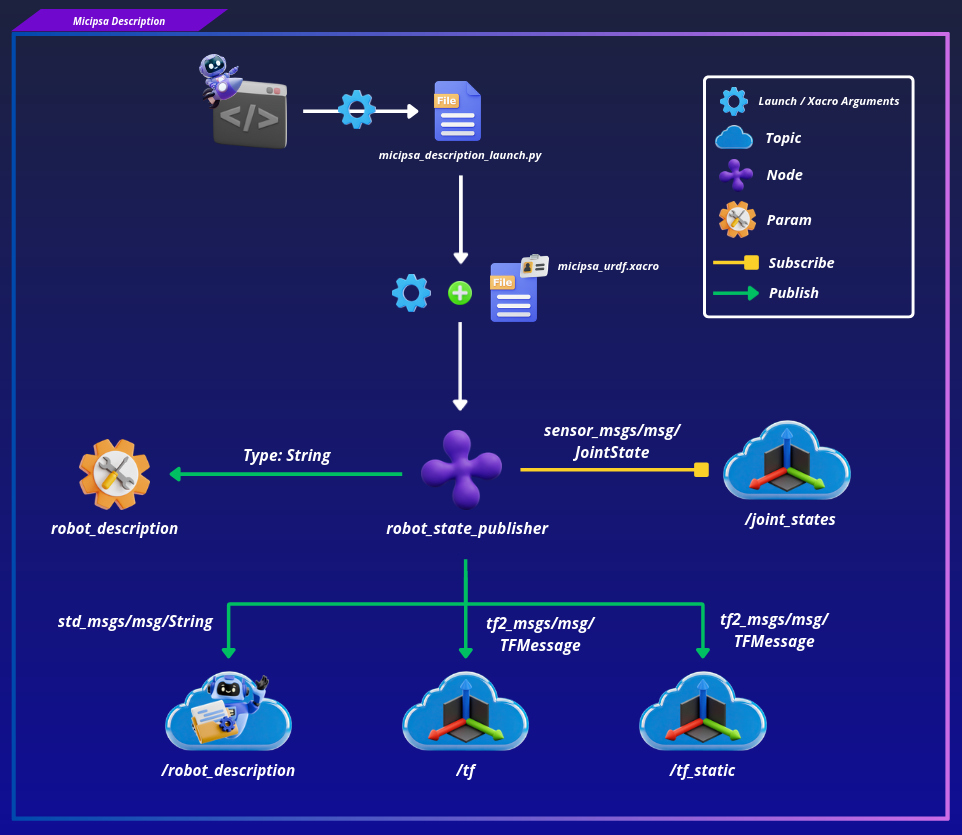
It exposes a single launch file that starts robot_state_publisher, which makes the /robot_description topic and param as well as the TF tree available to the rest of the system.
Architecture#
This package sits at the base of the Micipsa stack. Every other subsystem such as micipsa_control, micipsa_localization, micipsa_navigation depends on the robot description being available on the /robot_description topic/param and a valid TF tree being published, this package provides both.
The model is assembled from a hierarchy of Xacro files rooted at micipsa_urdf.xacro. This root file declares the robot name and the deploy_mode argument, then includes all sub-files in order: properties.xacro (shared parameters), micipsa_core.xacro (chassis and wheels), the three sensor components (lidar.xacro, imu.xacro, depth_camera.xacro), and finally micipsa_ros2_control.xacro (hardware interface).
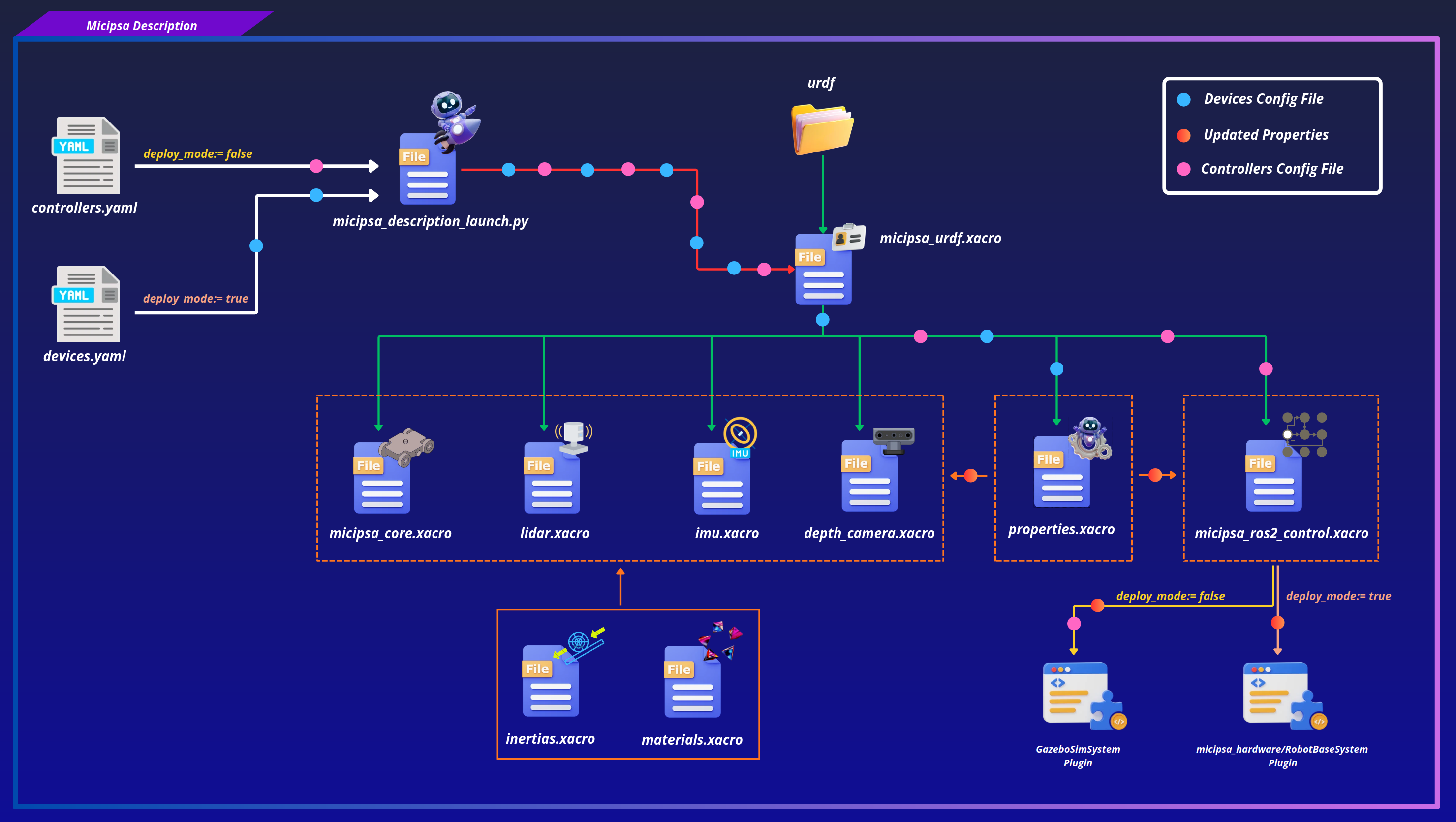
deploy_mode is the single switch that controls which ros2_control plugin and which Gazebo sensor tags are emitted:
deploy_mode=false(default):<xacro:unless>blocks emit thegz_ros2_control/GazeboSimSystemplugin, the Gazebo sensor tags for the camera, LiDAR and IMU, and load the controllers configuration file into the Gazebo plugin.deploy_mode=true:<xacro:if>blocks emit themicipsa_hardware/RobotBaseSystemplugin, which carries all drive wheel parameters (joint names, encoder CPR, inversion flags, wheel radius, max angular velocity), STM32 serial communication parameters, and an IMU sensor interface exposing orientation, angular velocity, and linear acceleration state interfaces.
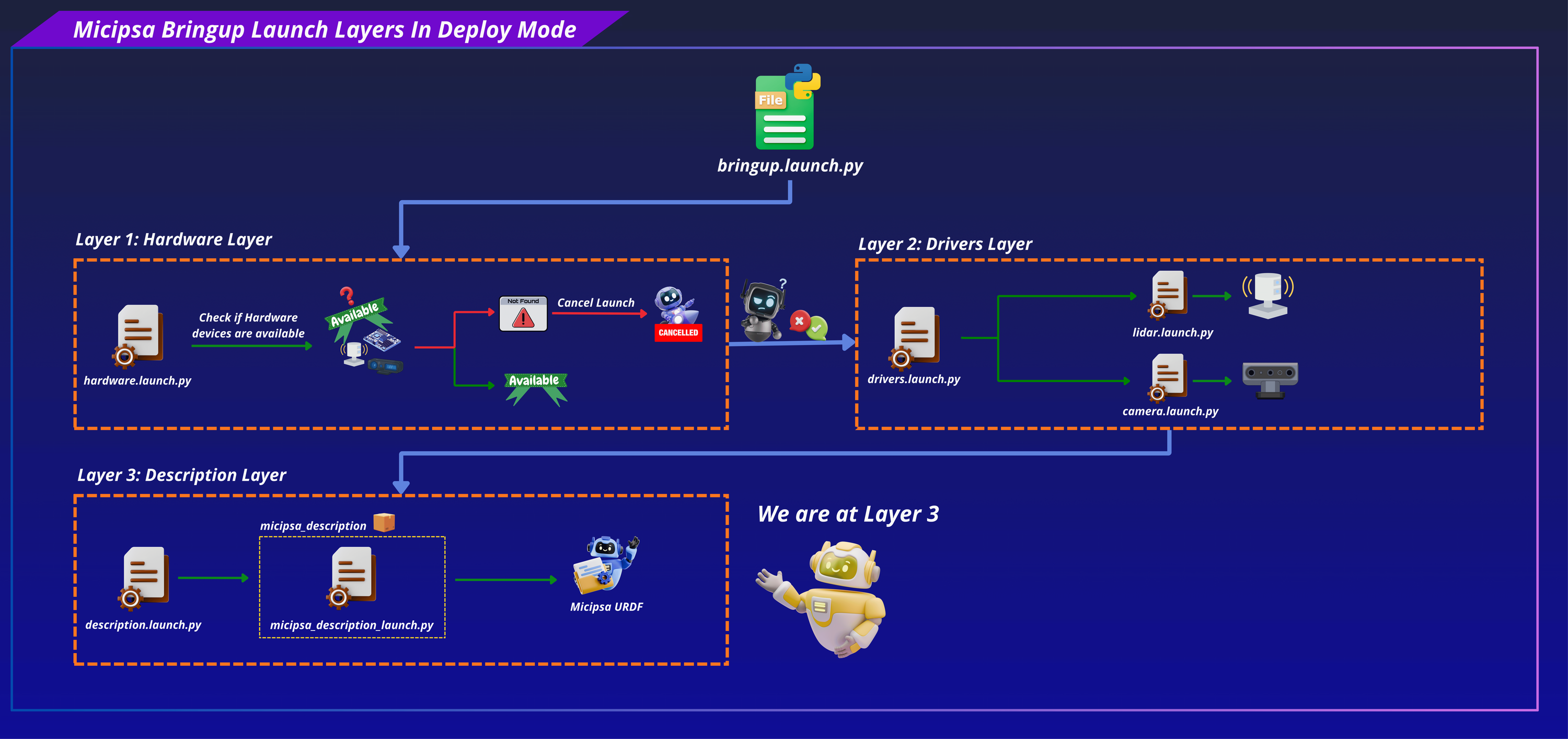
When launched as part of the full robot stack, the launch file receives a devices_config_file from micipsa_bringup. Device-specific values motor encoder CPR, motor inversion flags, STM32 port, baudrate and timeout are extracted from that file and passed as Xacro arguments during URDF generation. When micipsa_bringup is not installed, the launch file falls back to the defaults embedded in properties.xacro.
The controllers configuration (simulation case only) follows the same pattern: the launch file resolves controllers_config_file by looking first in micipsa_bringup/config/actuation/, then falling back to micipsa_control/config/. If micipsa_control is not installed, controller config injection is skipped.
The launch file intentionally does not start any joint state publisher. The hardware interface and Gazebo are responsible for publishing /joint_states when active, and starting a joint state publisher alongside them would cause conflicts.
ROS 2 Interface#
Published Topics#
| Topic | Publisher | Type | QoS |
|---|---|---|---|
/robot_description |
robot_state_publisher |
std_msgs/msg/String |
RELIABLE / TRANSIENT_LOCAL |
/tf_static |
robot_state_publisher |
tf2_msgs/msg/TFMessage |
RELIABLE / TRANSIENT_LOCAL |
/tf |
robot_state_publisher |
tf2_msgs/msg/TFMessage |
RELIABLE / VOLATILE |
Subscribed Topics#
| Topic | Subscriber | Type | QoS |
|---|---|---|---|
/joint_states |
robot_state_publisher |
sensor_msgs/msg/JointState |
BEST_EFFORT / VOLATILE |
Parameters#
| Parameter | Type | Default | Description |
|---|---|---|---|
robot_description |
string |
required | Full URDF XML expanded from Xacro at launch time |
Launch Arguments#
| Argument | Type | Default | Description |
|---|---|---|---|
deploy_mode |
bool |
false |
true to generate the hardware-targeted URDF; false for simulation |
use_sim_time |
bool |
true |
Use Gazebo /clock topic instead of wall time |
log_level |
string |
info |
Log verbosity for robot_state_publisher (debug, info, warn, error) |
devices_config_file |
string |
devices.yaml |
Device configuration file name or absolute path (used only when deploy_mode=true) |
controllers_config_file |
string |
controllers.yaml |
ros2_control controllers configuration file name or absolute path (used only when deploy_mode=false) |
TF Frames#
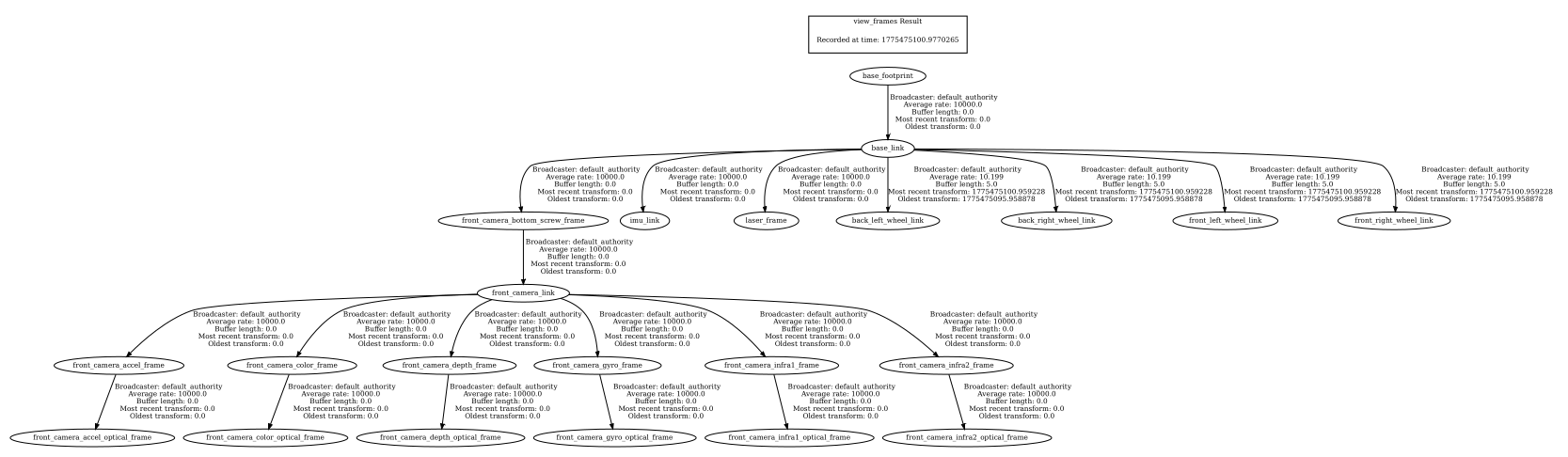
The table below lists the primary frames exposed by the robot. For the complete TF tree including all camera-specific frames, see the expandable section below.
| Frame | Parent | Joint Type |
|---|---|---|
base_footprint |
- | - |
base_link |
base_footprint |
fixed |
front_left_wheel_link |
base_link |
continuous |
front_right_wheel_link |
base_link |
continuous |
back_left_wheel_link |
base_link |
continuous |
back_right_wheel_link |
base_link |
continuous |
laser_frame |
base_link |
fixed |
imu_link |
base_link |
fixed |
front_camera_bottom_screw_frame |
base_link |
fixed |
Full Camera TF Frames
| Frame | Parent | Joint Type | |-------|--------|------------| | `front_camera_link` | `front_camera_bottom_screw_frame` | `fixed` | | `front_camera_accel_frame` | `front_camera_link` | `fixed` | | `front_camera_accel_optical_frame` | `front_camera_accel_frame` | `fixed` | | `front_camera_color_frame` | `front_camera_link` | `fixed` | | `front_camera_color_optical_frame` | `front_camera_color_frame` | `fixed` | | `front_camera_depth_frame` | `front_camera_link` | `fixed` | | `front_camera_depth_optical_frame` | `front_camera_depth_frame` | `fixed` | | `front_camera_gyro_frame` | `front_camera_link` | `fixed` | | `front_camera_gyro_optical_frame` | `front_camera_gyro_frame` | `fixed` | | `front_camera_infra1_frame` | `front_camera_link` | `fixed` | | `front_camera_infra1_optical_frame` | `front_camera_infra1_frame` | `fixed` | | `front_camera_infra2_frame` | `front_camera_link` | `fixed` | | `front_camera_infra2_optical_frame` | `front_camera_infra2_frame` | `fixed` |
Installation#
Important
Micipsa can be run in two ways: natively on a ROS 2 host, or via Docker using pre-built containerized images. Choose your approach before proceeding:
- Native: build the package directly in a ROS 2 workspace. Follow requirements and the Native Install steps below.
- Docker: use the Micipsa container stack, no manual workspace setup required. skip requirements section and follow the Docker steps below.
Requirements#
Source the ROS 2 environment:
First, make sure that the following packages are available in your workspace:
Install ROS 2 dependencies from the workspace root:
Optional Development Tools#
Useful for interactive testing and validation but not required to build or run the package.
sudo apt-get install ros-jazzy-joint-state-publisher-gui
sudo apt-get install ros-jazzy-rviz2
sudo apt-get install liburdfdom-tools
Native Install#
Build the package:
Source the install overlay:
Tip
Add source /opt/ros/jazzy/setup.bash and source ~/ros2_ws/install/setup.bash to your ~/.bashrc to avoid repeating these steps in every new terminal. Adjust the path and ROS distribution name as needed.
Docker#
Tip
Reading Micipsa Docker documentation (architecture, dockerfile, docker compose,...) is strongly recommended, it covers how the Dockerfiles are structured, how images are built, how containers are orchestrated, and much more.
To build and run the micipsa_description Docker image, follow Micipsa Dockerfile README Build Section.
Configuration#
The primary configuration switch is the deploy_mode launch argument, It controls which ros2_control plugin is emitted in the generated URDF and which set of optional Xacro arguments are resolved at launch time:
deploy_mode=false(default):gz_ros2_control/GazeboSimSystemplugin is emitted, along with Gazebo sensor tags for the camera, LiDAR, and IMU.controllers_config_fileargument is resolved and injected directly into the Gazebo plugin.devices_config_fileare not loaded (specific to physical hardware).
deploy_mode=true:micipsa_hardware/RobotBaseSystemplugin is emitted with devices parameters fromdevices_config_file.- Gazebo sensor tags are suppressed.
controllers_config_fileargument is not used controller loading is the responsibility ofmicipsa_controlin deploy mode.
In both modes, when micipsa_bringup is not installed, device-related Xacro arguments are not injected and the URDF falls back to the defaults embedded in properties.xacro.
Similarly, when micipsa_control is not installed, controller config injection is skipped entirely in simulation mode.
For the complete list of supported launch arguments, see the Launch Arguments section.
Info
For configuration files, you can specify either the filename or the absolute path. See Package Standards for understanding config loading workflow.
Usage#
Simulation#
Start robot_state_publisher with the Gazebo-targeted URDF (deploy_mode=false, use_sim_time=true):
To override the controllers configuration file:
ros2 launch micipsa_description micipsa_description_launch.py \
  controllers_config_file:=controllers.yaml
Deploy#
Launch the robot description targeting the physical hardware:
ros2 launch micipsa_description micipsa_description_launch.py \
  deploy_mode:=true \
  use_sim_time:=false
To override the device configuration file:
ros2 launch micipsa_description micipsa_description_launch.py \
  deploy_mode:=true \
  use_sim_time:=false \
  devices_config_file:=devices.yaml
Validation#
First, run the description launch file in simulation mode:
ros2 launch micipsa_description micipsa_description_launch.py \
  deploy_mode:=false \
  use_sim_time:=false
Then start the joint state GUI in a separate terminal to drive the wheel joints:
Now choose a verification method: RViz, Foxglove, or CLI.
RViz#
Open RViz:
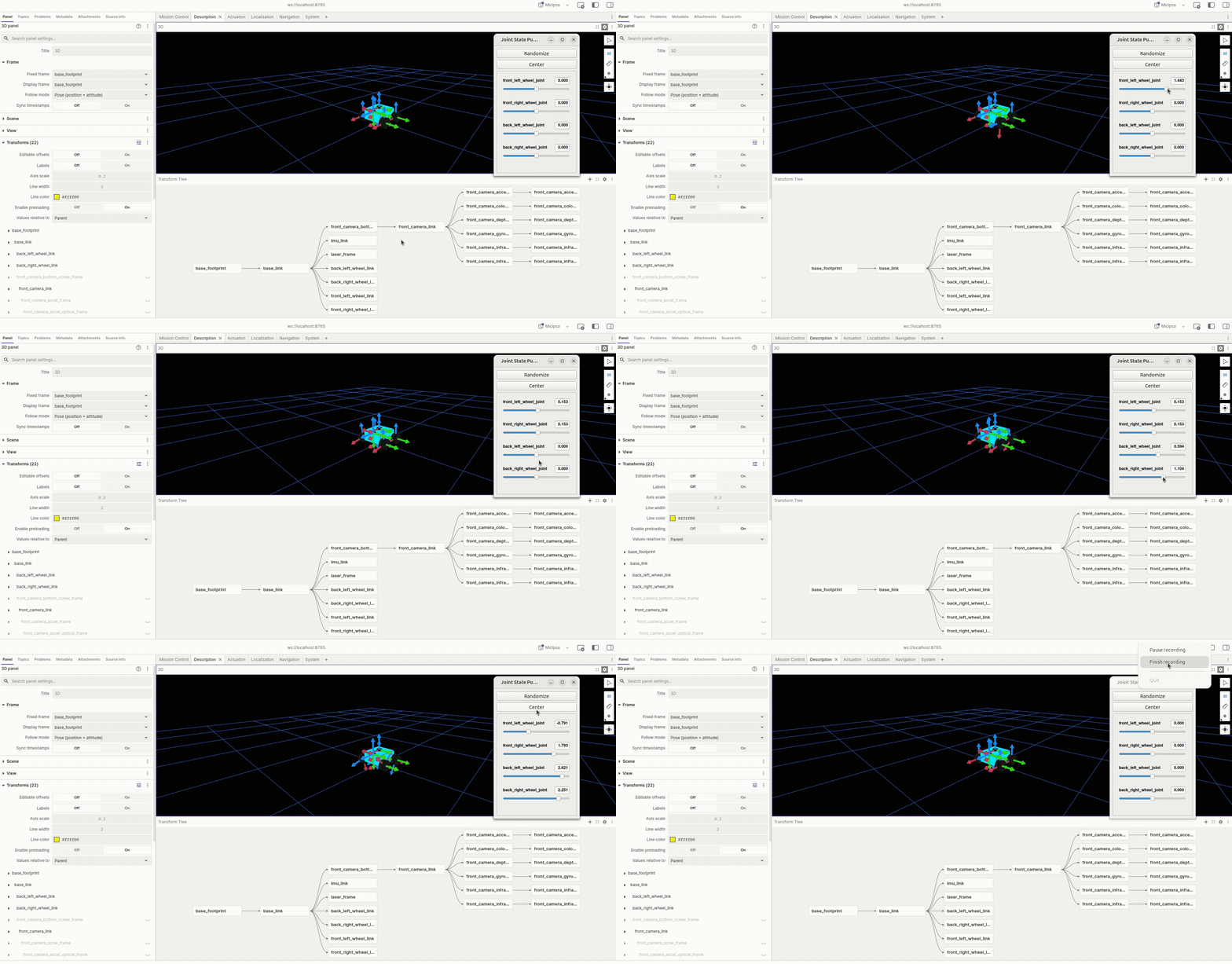
Set Fixed Frame to base_footprint, add a TF display, and add a RobotModel display with the Description Topic set to /robot_description.
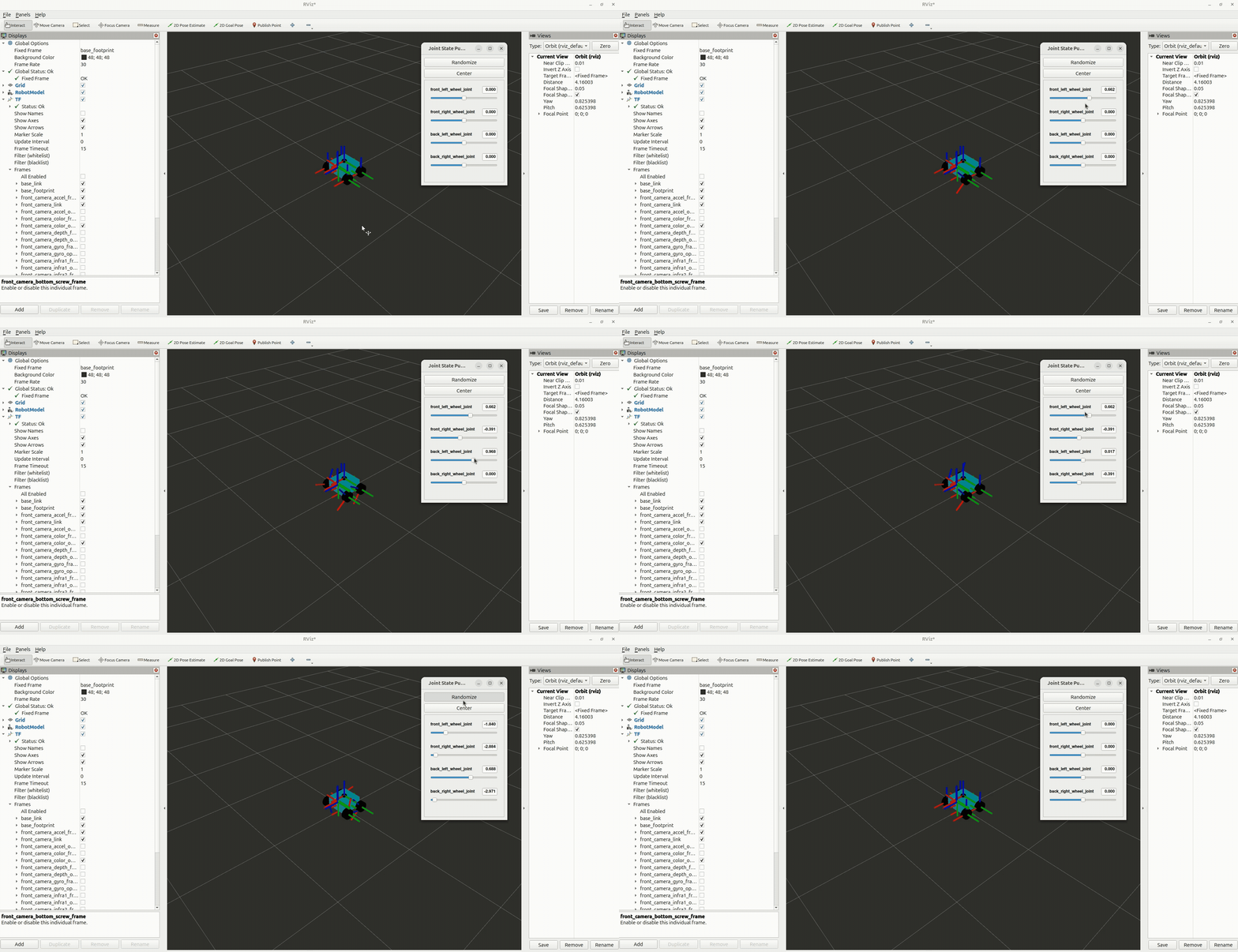
Confirm the robot model renders correctly and all transforms are available.
Foxglove#
Start the Foxglove bridge:
Then open Foxglove Studio:
Set Fixed Frame and Display Frame to base_footprint.
CLI#
Confirm specific static transforms are present:
Expected output for tf2_echo base_footprint base_link:
To inspect the full TF tree:
Additional Information#
Dependencies#
Build Dependencies#
These dependencies are required when building the package.
| Package | Purpose |
|---|---|
ament_cmake |
CMake build system integration for ROS 2 packages |
ament_cmake_python |
Python package installation support within a CMake package |
Runtime Dependencies#
These dependencies are not required to build the package but are required when running it.
| Package | Purpose |
|---|---|
xacro |
Expands Xacro macros into plain URDF XML at launch time |
robot_state_publisher |
Publishes the robot TF tree from the expanded robot description |
micipsa_common |
Provides shared utilities used by the launch file: resolve_config_path() and get_device_config() |
ament_index_python |
Resolves ROS 2 package share directories at runtime |
Test Dependencies#
Used only when running the package test suite.
| Package | Purpose |
|---|---|
ament_cmake_pytest |
Runs Python unit tests via colcon test |
launch_testing_ament_cmake |
CMake integration for launch integration tests |
launch_testing |
Launch test framework |
launch |
Launch API used by test descriptions |
launch_ros |
ROS-specific launch actions used by tests |
ament_cmake_ros |
Provides isolated ROS launch test runners (run_test_isolated.py) |
Micipsa Packages Dependencies#
| Package | Role |
|---|---|
micipsa_common |
Provides resolve_config_path() and utils.console_utils.warn(), imported directly by behavior_launch.py |
Development Tools Dependencies#
Useful for interactive testing and validation but not required to build or run the package.
| Tool | Purpose |
|---|---|
joint_state_publisher_gui |
Manually drive wheel joints for visualization when running standalone |
rviz2 |
Visualize the robot model and TF tree |
check_urdf |
Validate generated URDF files for kinematic consistency |
Testing#
Note
All tests run headless and do not require a running simulation or physical hardware. They can be executed reliably in CI environments.
Unit Tests#
test/test_urdf.py verifies that micipsa_urdf.xacro can be processed by xacro and that the resulting URDF is a valid, parseable XML document with a <robot> root element. Tests are parametrized and run for both deploy_mode=false and deploy_mode=true. If check_urdf is installed, it is also invoked to validate kinematic consistency.
Launch Integration Tests#
test/test_urdf_integration_launch.py launches the description stack with deploy_mode=false and use_sim_time=true, subscribes to /tf_static with a TRANSIENT_LOCAL QoS profile, and asserts that:
- At least one
/tf_staticmessage is received within 3 seconds. - The
base_footprint ← base_linkstatic transform is available in the TF buffer. - The
base_link ← laser_framestatic transform is available in the TF buffer.
Running Tests#
Run only the unit tests:
colcon build --packages-select micipsa_description
colcon test --packages-select micipsa_description --ctest-args -L "(gtest|pytest)" -V
colcon test-result --verbose
Run only the launch integration tests:
colcon build --packages-select micipsa_description
colcon test --packages-select micipsa_description --ctest-args -L launch -V
colcon test-result --verbose
Run all tests:
colcon build --packages-select micipsa_description
colcon test --packages-select micipsa_description
colcon test-result --verbose
Clean test results between runs:
Troubleshooting#
Device configuration not applied#
Symptom: The robot launches successfully but encoder CPR, inversion flags, or STM32 settings do not match the expected device configuration.
Cause: micipsa_bringup is not installed or the specified devices_config_file could not be resolved. Device argument injection is skipped entirely when micipsa_bringup is absent.
Fix: Verify that micipsa_bringup is installed:
Controllers not loaded in simulation#
Symptom: Gazebo starts but no controllers are active, ros2 control list_controllers returns an empty list or the controller manager reports no controllers loaded.
Cause: The controllers configuration file was not injected into the Gazebo plugin. This happens when micipsa_control is not installed (injection is skipped entirely) or when the resolved config path is empty or invalid.
Fix:
First confirm micipsa_control is installed
Then verify the resolved config path by inspecting the launch output for a warning line from resolve_config_path(). You can also confirm the path by checking the generated robot_description param: