Buffers




Network Buffers wmem rmem#
DDS sends and receives data through OS-managed socket buffers known as rmem (Receive Memory Buffer) and wmem (Write Memory Buffer)
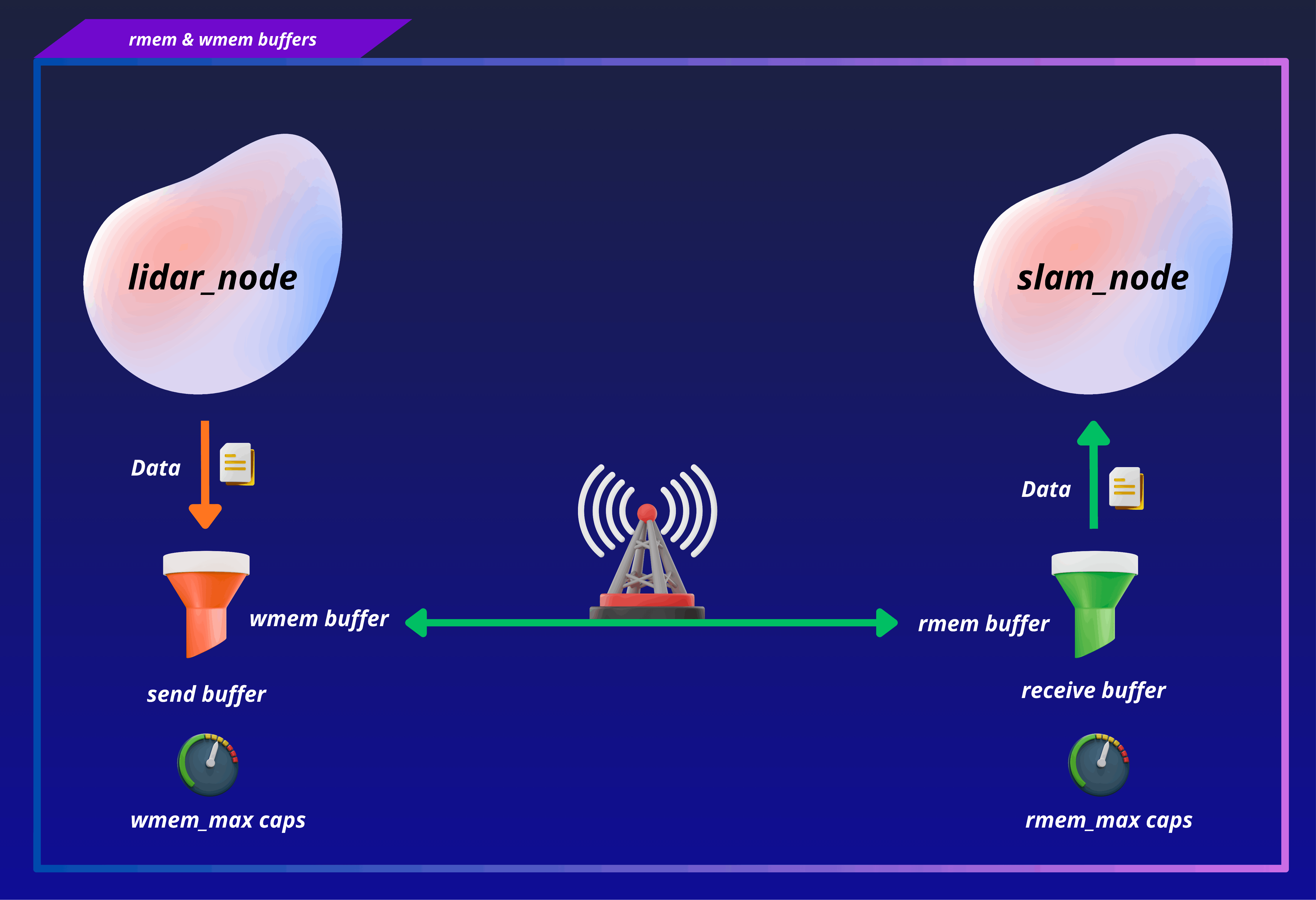
Two kernel parameters control their maximum size:
| Parameter | Controls | Default | Recommended |
|---|---|---|---|
wmem_max |
Max send buffer size per socket | ~200 KB | 64 MB |
wmem_default |
Default send buffer size | ~200 KB | 64 MB |
rmem_max |
Max receive buffer size per socket | ~200 KB | 64 MB |
rmem_default |
Default receive buffer size | ~200 KB | 64 MB |
If wmem is too small publisher drops frames before they even leave the machine. For example Camera images and LiDAR scans appear briefly then disappear.
If rmem is too small then incoming packets are silently dropped at the OS level before ROS ever sees them.
CycloneDDS requires significantly larger UDP socket receive buffers than the Linux default (~212 KB). Without this, node initialization fails with the following error: failed to increase socket receive buffer size
Setting rmem wmem Values#
These values must be applied on every machine running ROS 2 nodes, both the robot and the base station.
Setting rmem_max / wmem_max to arbitrarily large values is a common misconfiguration. Assigning the _max parameters to 2147483647 (2GB the 32-bit integer ceiling) does not improve performance. The _max parameter defines the upper bound that any individual socket is permitted to request, while _default defines the baseline allocated to every new socket that does not explicitly request a size. A _max of 2GB does not pre-allocate that memory, but it permits any single process to request up to that amount through socket buffers, a significant risk on memory-constrained platforms, 64MB is sufficient for ROS 2 workloads combining camera and LiDAR traffic.
Both _max and _default should be set to the same value and the rmem and wmem parameters should always be configured symmetrically.
Important
You can use the network installer script to automatically configure the buffer values, or configure them manually. (recommended)
Start with Standard Method fix.
If the values still reset after reboot, it means that your platform applies sysctl too early in the boot sequence, follow Advanced Method fix instead.
To define a more accurate value that matches your needs, please read Determining the Required Buffer Size
Network Script Installer#
cd ~/ros2_ws/src/micipsa/infra/scripts/installers
chmod +x install_network.sh
sudo ./install_network.sh
Standard Method#
echo "net.core.rmem_max=67108864"     | sudo tee -a /etc/sysctl.d/99-micipsa_network.conf
echo "net.core.rmem_default=67108864" | sudo tee -a /etc/sysctl.d/99-micipsa_network.conf
echo "net.core.wmem_max=67108864" | sudo tee -a /etc/sysctl.d/99-micipsa_network.conf
echo "net.core.wmem_default=67108864" | sudo tee -a /etc/sysctl.d/99-micipsa_network.conf
sudo sysctl -p
Note
The 99- prefix ensures this config file loads after all other sysctl rules.
After rebooting, verify the values persisted:
Advanced Method#
On some platforms (notably NVIDIA Jetson running L4T), the standard sysctl.conf / sysctl.d approach does not survive a reboot, even though sudo sysctl -p applies it correctly at runtime.
Jetson's L4T uses a boot system with a init.d script called procps, symlinked as S01procps, meaning it runs as the very first process at boot (runlevel S, single-user mode, before the network stack exists):
This script correctly applies sysctl values via sysctl --system, but the network stack hasn't initialized yet at that point. When it comes up shortly after (via nvethernet, l4tbr0, NetworkManager, etc.), the kernel resets socket buffer defaults back to 212992.
On standard Ubuntu, systemd-sysctl runs late enough to avoid this. On Jetson, init.d/procps runs far too early.
Problem Diagnosis#
On a fresh reboot:
1. Check Runtime Values#
2. Confirm Sysctl Applies Correctly Manually#
sudo sysctl --system
sysctl net.core.rmem_max net.core.rmem_default net.core.wmem_max net.core.wmem_default
3. Confirm Early Boot Ordering Of procps#
4. Inspect Init Script#
cat /etc/init.d/procps
# Relevant lines:
# X-Start-Before: $network   ← runs before network is up
# Default-Start:  S          ← runlevel S = very early single-user boot
Applying Fix#
Use /etc/rc.local. The rc-local.service unit is started by systemd after multi-user.target, NetworkManager, and all other services, meaning nothing runs after it to undo the kernel values.
1. Create or edit /etc/rc.local#
Paste the following content:
#!/bin/sh -e
/sbin/sysctl -w net.core.rmem_max=67108864
/sbin/sysctl -w net.core.rmem_default=67108864
/sbin/sysctl -w net.core.wmem_max=67108864
/sbin/sysctl -w net.core.wmem_default=67108864
exit 0
2. Make It Executable#
3. Reboot#
Note
Any entries in /etc/sysctl.conf or /etc/sysctl.d/99-micipsa_network.conf can be kept as documentation or reference, but on Jetson they are not what applies the values at runtime, /etc/rc.local is.
Checking rmem wmem Values#
or
cat /proc/sys/net/core/wmem_max
cat /proc/sys/net/core/wmem_default
cat /proc/sys/net/core/rmem_max
cat /proc/sys/net/core/rmem_default
Expected output:
net.core.rmem_max = 67108864
net.core.rmem_default = 67108864
net.core.wmem_max = 67108864
net.core.wmem_default = 67108864
Determining the Required Buffer Size#
Note
For most ROS 2 systems running camera and LiDAR simultaneously, 64 MB is enough without needing to calculate
Buffer sizing is not arbitrary, it can be derived from your actual network conditions using the following formula:
1. Measure actual topic bandwidth#
Run the following on the robot to measure what your topics are producing:
Example output:
/front_camera/color/image_raw  →  15.0 MB/s
/scan                          →   0.5 MB/s
/tf                            →   0.1 MB/s
                                 ──────────
total                          →  ~16 MB/s
2. Apply the formula#
Using the measured total with a conservative safety factor:
Round up to the next power of two: 8 MB minimum.
3. Add operational headroom#
The calculated minimum covers steady-state traffic only. In practice, sensor data is bursty, a LiDAR scan arrives all at once, not spread evenly across the interval. A headroom multiplier of 8–10× is standard for robotics workloads, which is how the community-standard value of 64 MB is reached.