Udev Rules



Why Udev Rules#
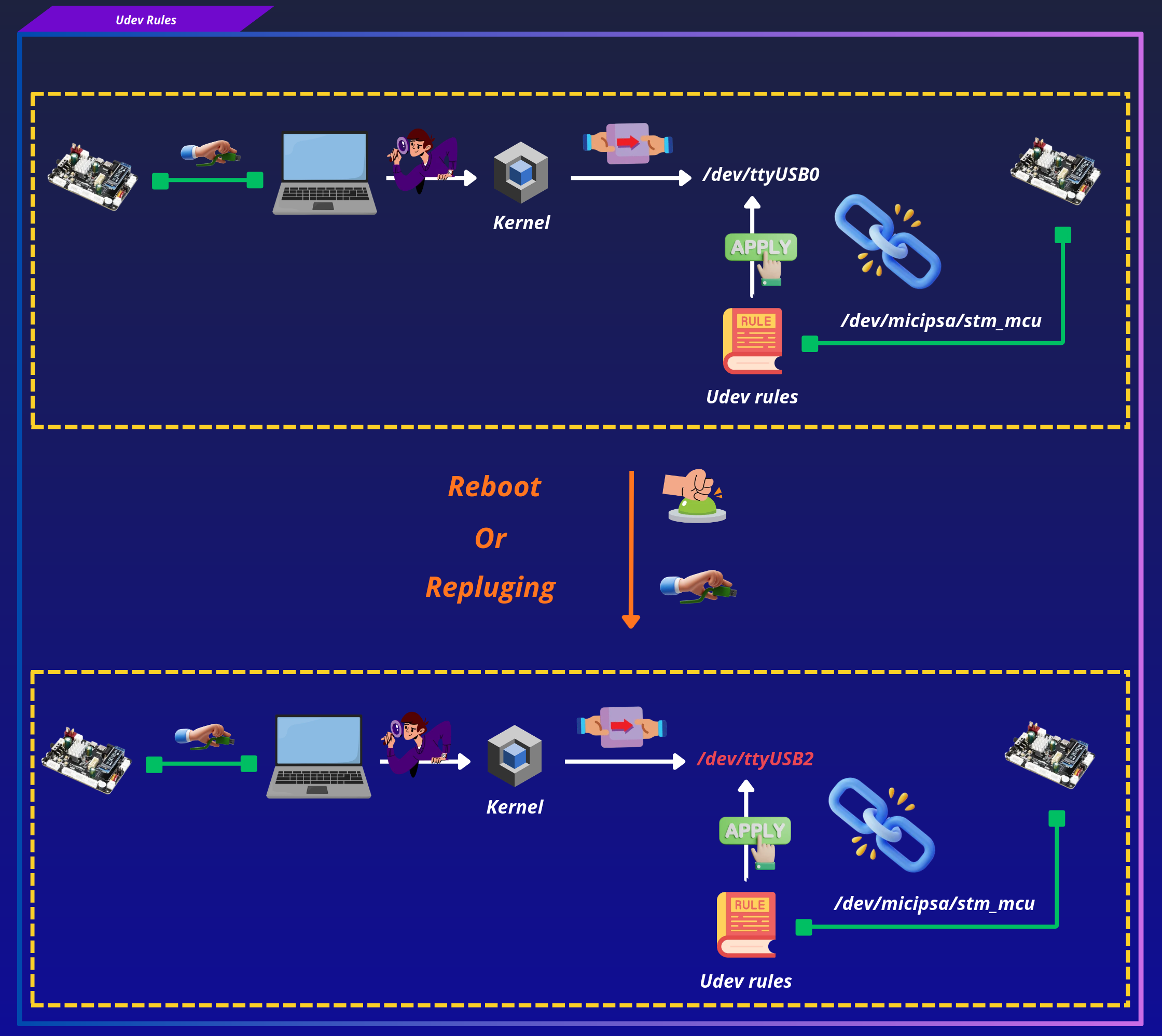
udev rules create stable, named symlinks for hardware devices regardless of which /dev/videoN or /dev/ttyUSBN number the kernel assigns at boot. This is essential in robotics setups where devices are frequently plugged and unplugged and enumeration order is not guaranteed.
When a device is connected, the kernel assigns it a node such as /dev/video2. On the next plug event, it may become /dev/video7. udev intercepts that event and, based on the device's hardware attributes, creates a stable symlink such as /dev/micipsa/realsense_depth0 pointing to whichever node was assigned.
This mechanism also applies to containerised environments. Docker resolves the symlink at container start time and creates a device node at the path specified inside the container. The container always sees the same path regardless of host enumeration order.
Installation#
Important
Both installation methods are equivalent and produce the same result.
Script installer is the recommended approach
If you wish to add an udev rule for a new device, refer to Adding Udev Rules For New Devices.
Script Installer#
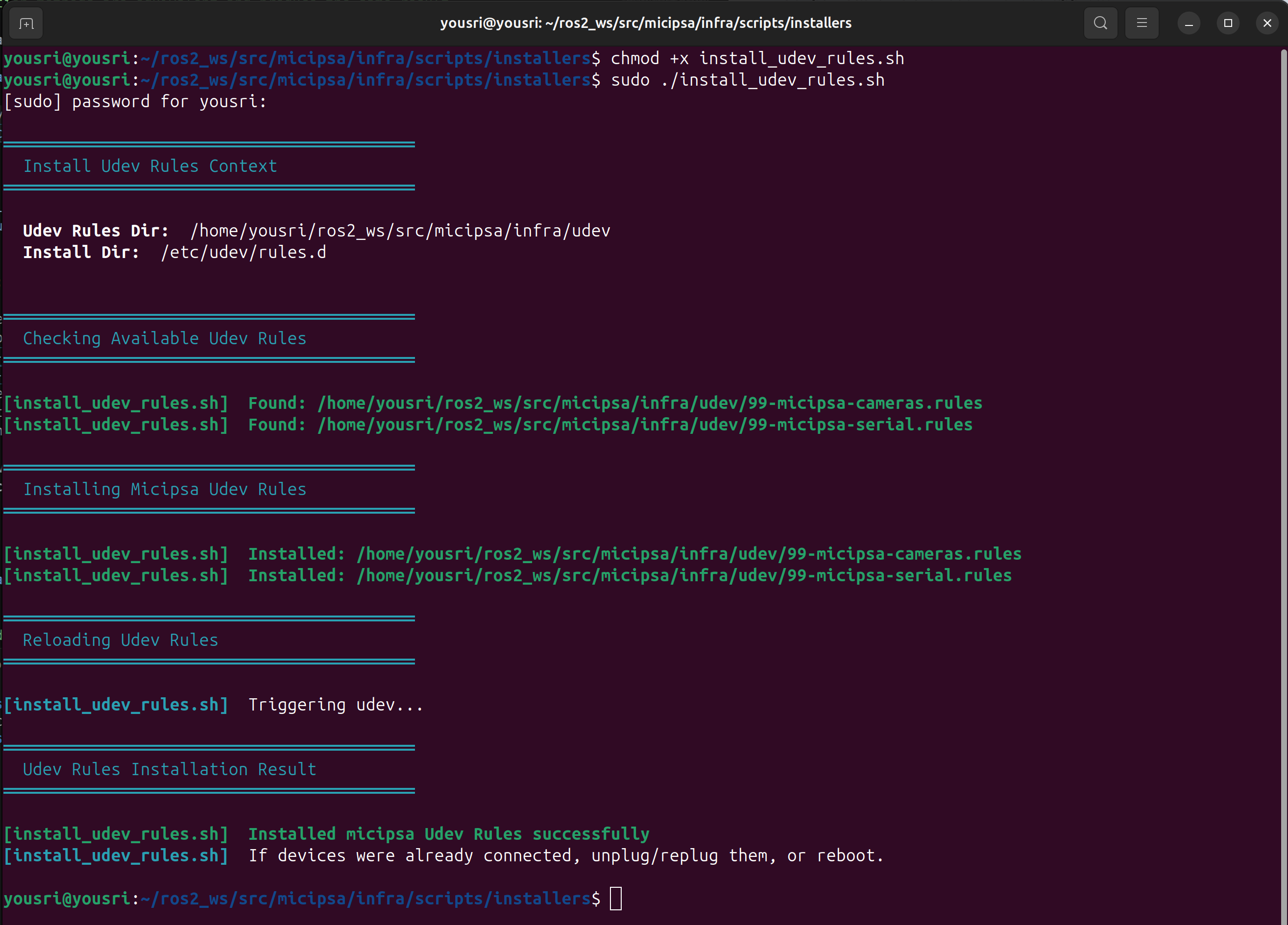
To automatically apply the provided udev rules, execute the installation script found in the infra/scripts/installers folder:
The script will:
- Locate the udev rule files stored in
infra/udev/ - Install the available following rules into
/etc/udev/rules.d/:99-micipsa-cameras.rules99-micipsa-serial.rules
- Reload the udev daemon so the new rules are active
- Trigger udev to apply the rules to already-connected devices
- Display the installed rule paths for confirmation
If the devices were already connected at the time of installation, you may need to unplug and reconnect them, or restart the system for the rules to take full effect.
Manual Install#
Note
udev only loads rules placed under /etc/udev/rules.d/.
sudo cp 99-micipsa-serial.rules /etc/udev/rules.d/
sudo udevadm control --reload-rules && sudo udevadm trigger
sudo cp 99-micipsa-cameras.rules /etc/udev/rules.d/
sudo udevadm control --reload-rules && sudo udevadm trigger
Uninstall#
Script Uninstaller#
Note
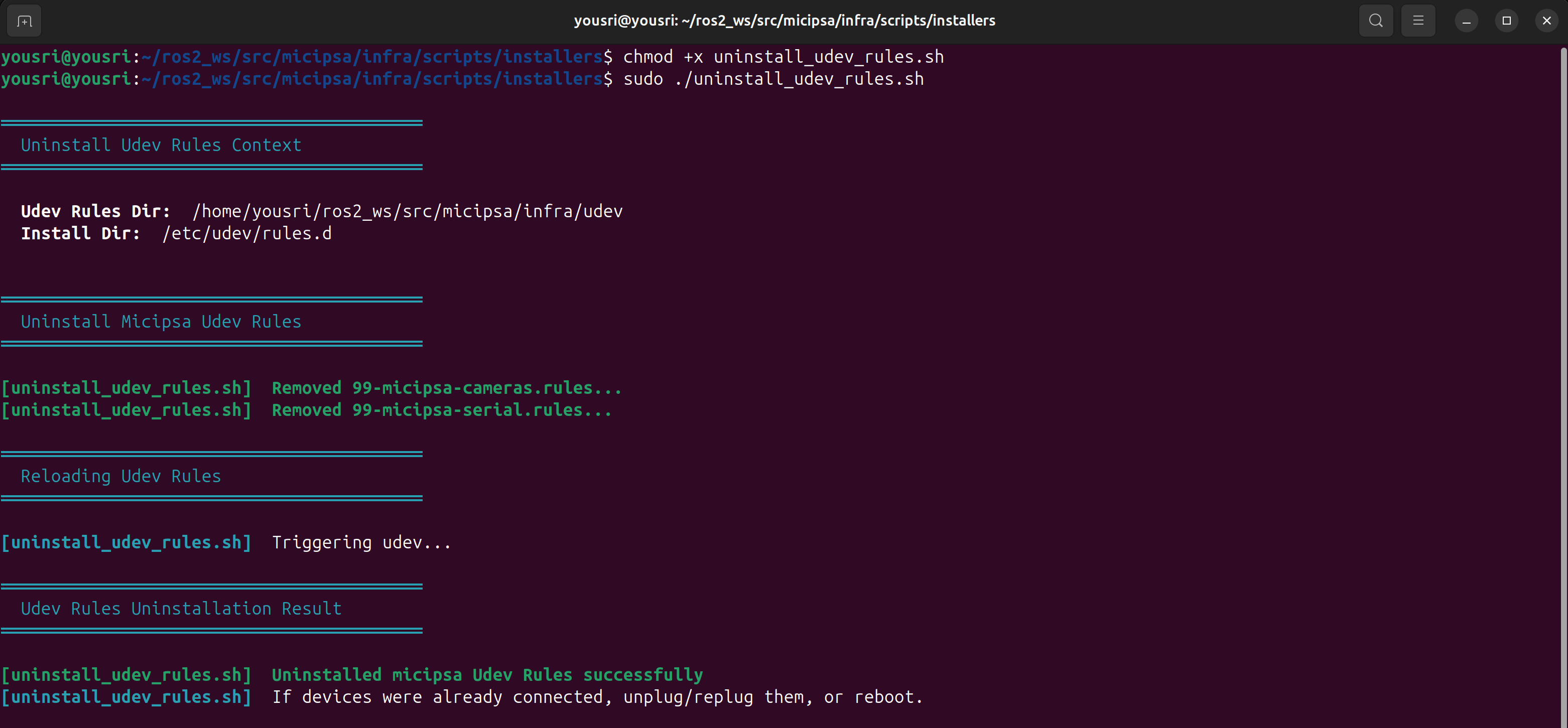
The uninstaller script reverts all changes made by the installer.
Using the uninstaller script is the recommended removal method.
Manual Uninstall#
sudo rm -f /etc/udev/rules.d/99-micipsa-cameras.rules
sudo rm -f /etc/udev/rules.d/99-micipsa-serial.rules

sudo udevadm control --reload-rules
sudo udevadm trigger
Reconnect the USB devices or reboot the system to apply the changes.
Adding Udev Rules For New Devices#
To add new serial device udev rules, refer to Serial Udev Rules.
To add new camera device udev rules, refer to Camera Udev Rules.
Additional Information#
Rule Field Reference#
All udev rules share a common set of fields. The table below defines each field once, device-specific behaviour is noted in the relevant section.
| Field | Description |
|---|---|
SUBSYSTEM |
Device subsystem to match, "video4linux" for cameras, "tty" for serial devices |
ATTRS{idVendor} |
USB vendor ID (4-digit hex), inherited from a parent device in the USB tree |
ATTRS{idProduct} |
USB product ID (4-digit hex), inherited from a parent device in the USB tree |
ATTRS{serial} |
Hardware serial number, inherited from a parent device; omit if the device has none |
ATTR{index} |
Node index within the device, stable across plugs; camera-specific |
ENV{ID_USB_INTERFACE_NUM} |
USB interface number, differentiates stream groups on multi-interface devices; camera-specific |
ENV{ID_PATH} |
Physical USB port path, use when idVendor and idProduct alone are ambiguous (no serial number, or duplicate hardware) |
SYMLINK+="micipsa/..." |
Creates a stable symlink under /dev/micipsa/ |
MODE="0666" |
Device file permissions |
GROUP |
Unix group granted access to the device, "video" for cameras, "dialout" for serial devices |
Note
The plugdev group is specific to Intel RealSense cameras. For most other USB camera devices, the appropriate group is video.